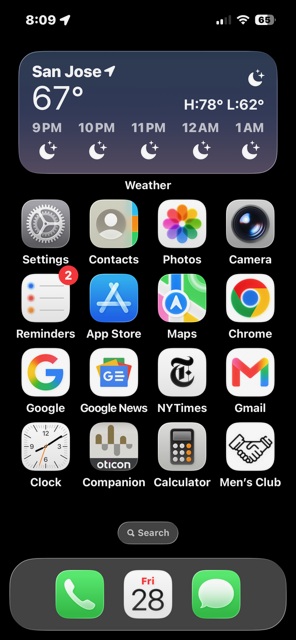
These instructions are easiest to use if your print them or view them on your computer while working on your phone.
 |
➕ Add Icon 🔎 Find Icon 🖨️ Print Page |
Add a Men’s Club Website App Icon on an iPhone
Step 1: Open this page in  Safari on your phone
 Safari on your phone
This process requires Safari, it’s the app with the compass icon
Go to vmfsc.vgcc.club/iphone
Step 2: Click this button: Put the Club Icon on My iPhone
Step 3: Follow the instructions on the phone screen
Your iPhone will ask you a few questions. Here is what to tap:
- Tap Allow
- Open Settings and tap Profile Downloaded near the top*
- Tap Install and enter your passcode
- Your iPhone will say Not Verified–that’s normal for our Club icon
- Tap Install again
*Don’t see Profile Downloaded? Look in Settings → General → VPN & Device Management
✅ Done! A new app icon will now appear on your screen. From now on, just tap it to open the website.
Where Did the App Icon Go?
Check for gaps on all pages. Look closely at your main screen. Swipe your finger to the left to look through page 1, page 2, and so on. The phone may have dropped the new icon into any empty, blank space.
Swipe all the way to the very end. If you do not see it in a gap, keep swiping your finger to the left until the screen stops moving completely. It will be the very last icon on that final, newest page.